
What We Know About Trump’s Great American State Fair
The Concept and Organization
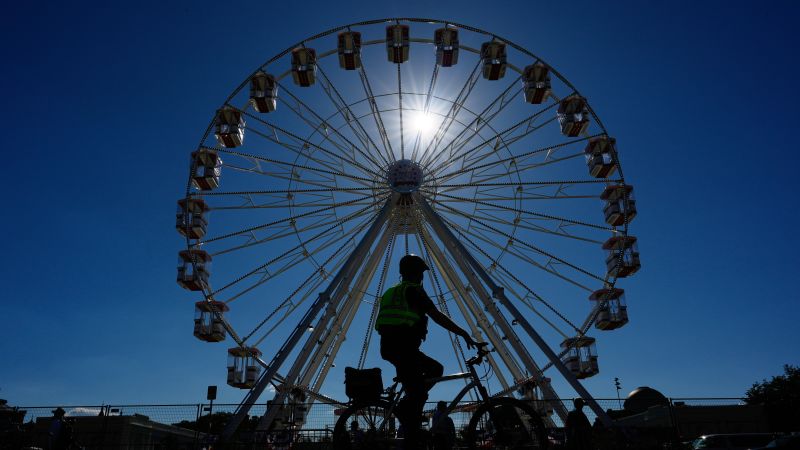
Sandego.net – The 16-day Great American State Fair, initiated by the Trump administration, has transformed the National Mall in Washington, D.C. into a vibrant showcase of U.S. states and territories. President Donald Trump first hinted at this project during his 2023 presidential campaign, envisioning a modern World’s Fair that would celebrate American unity and diversity. Now, three years later, the event is fully operational, featuring a range of activities designed to engage visitors. These include military air shows, film screenings, and a towering 110-foot Ferris wheel. The fair’s design reflects Trump’s vision, with a miniature version of his proposed 250-foot “triumphal arch” serving as a centerpiece. At its opening ceremony, Trump remarked, “This is the beginning of the golden age of America,” underscoring the event’s significance as a patriotic celebration.
Events and Attractions
Freedom250, the Trump-aligned nonprofit behind the fair, has curated a schedule that blends entertainment with educational experiences. The organization has hosted a variety of 250th-anniversary events, such as the Rededicate 250 prayer ceremony on the National Mall in May. This summer, the fair will also include an IndyCar race and the Patriot Games, a youth sports competition offering a $250,000 prize to the winning pair. Despite its free admission, Freedom250 has urged attendees to RSVP for better event coordination. The fairgrounds, however, are not without controversy. Oregon Governor Tina Kotek, a Democrat, expressed concerns that the event had “shaping up to be a more partisan affair than originally presented,” highlighting the political undertones of the project.
State Pavilions and Experiences
Each state and territory has been represented through immersive pavilions, though not all have participated directly. States like Washington, Massachusetts, Illinois, North Carolina, and Connecticut opted out, citing financial constraints. In their place, volunteer groups have stepped in to showcase these regions. The pavilions, housed in large white tents adorned with neoclassical columns, feature interactive exhibits designed to reflect the unique culture, history, and landscapes of each state. Arizona’s booth, for instance, offers a “sensory journey” through the state’s natural wonders, as explained by Paul Behnen, creative director at Off Madison Ave, the agency behind the display. “You start with the warm, cathedral light in Antelope Canyon,” Behnen told CNN before the fair began. “Then you transition into the cool, dappled light of a Ponderosa pine forest. And lastly, you wander into a Sonoran Desert nightscape, where blacklights subtly illuminate stars and saguaro cactuses.”
Regional Highlights
Montana’s pavilion allows visitors to engage in a fossil-digging simulation, offering hands-on interaction with the state’s geological heritage. Florida’s exhibit, on the other hand, highlights its citrus industry through a mini-golf putting green that mimics the state’s agricultural landscapes. Oklahoma’s booth aims to create an atmospheric experience, replicating the smells of the prairie and using lighting to depict the transition from sunrise to dusk. To enhance the experience, fans are strategically placed to evoke the lyrics from the musical “Oklahoma!”—“where the wind comes sweepin’ down the plain.” Amy Blackburn, executive director of the Oklahoma Tourism and Recreation Department, emphasized the booth’s goal: “We really wanted to focus on dispelling some preconceived notions about Oklahoma and getting people to see all the diversity and wonderful experiences we have to offer in our state.”
Additional Activities
Beyond the state pavilions, the fairgrounds host a range of attractions that celebrate the American West. Rodeo shows featuring precision-riding demonstrations and traditional Mexican charro performances draw crowds eager to experience the region’s cultural richness. Visitors can also meet American Miniature Therapy Horses, providing a soothing addition to the event’s dynamic offerings. Freedom250’s mobile museums, dubbed the Freedom Trucks, further reinforce the fair’s theme by narrating the story of America’s founding through AI-generated videos and artwork. These trucks collaborate with organizations such as Hillsdale College, a Christian liberal arts institution in Michigan, and PragerU, a conservative media group focused on countering what it describes as a “dominant left-wing ideology.”
Challenges and Adjustments
Despite its ambitious scope, the fair has faced some logistical hurdles. Recently, Freedom250 had to cancel several concerts after scheduled artists withdrew, likely due to the event’s political alignment. The remaining onstage attractions include military bands, ceremonial guard units, acrobatic performances, and fireside chats with prominent figures such as Dr. Mehmet Oz and Second Lady Usha Vance. “We’re literally gonna have hundreds of performers,” Freedom250 CEO Keith Krach stated before the fair’s launch, aiming to ensure a diverse array of experiences for all attendees.
Broader Implications
The Great American State Fair serves as more than just a celebration of national identity; it also reflects the Trump administration’s efforts to promote a unified narrative through cultural and historical displays. While some states have chosen to participate, others have hesitated, raising questions about the event’s inclusivity and the extent of its political influence. The fair’s blend of entertainment, education, and political messaging has sparked discussions about its role in shaping public perception of the United States. As visitors explore the pavilions and activities, they encounter a curated representation of America’s states, each offering a glimpse into its distinct character.
Legacy and Future
With its focus on patriotism and national pride, the Great American State Fair positions itself as a landmark event in the nation’s centennial celebrations. The inclusion of modern technology, such as AI-generated content, alongside traditional elements like military flyovers and folk performances, underscores the effort to blend innovation with heritage. As the fair draws crowds from across the country, it remains a platform for showcasing the United States’ diverse cultures while reinforcing a cohesive national identity. Whether viewed as a celebration of unity or a reflection of partisan priorities, the event is undeniably a spectacle that highlights the country’s rich tapestry of states and communities.
Freedom250’s commitment to engaging the public is evident in its careful planning of every aspect of the fair. From the immersive state pavilions to the interactive activities, the organization has worked to create an experience that is both educational and enjoyable. The event’s free admission policy further broadens its accessibility, allowing people from all walks of life to participate. As the fair unfolds over its 16-day duration, it continues to draw attention to the United States’ cultural and historical legacy, offering a unique opportunity for visitors to connect with the nation’s diverse regions. While challenges such as financial constraints and political concerns have shaped the fair’s development, its organizers remain focused on delivering a memorable celebration of American values and achievements.
Throughout the fair, the National Mall becomes a living museum, where the past and present converge. The state pavilions, with their innovative designs and thematic elements, provide a deeper understanding of each region’s unique contributions to the nation. Arizona’s sensory journey, for example, not only highlights the state’s natural beauty but also invites visitors to experience its landscapes in a novel way. Similarly, Oklahoma’s exhibit uses lighting and sound to transport attendees to the prairies and deserts that define the state’s identity. These immersive experiences aim to foster a sense of pride and curiosity among participants, encouraging them to explore and appreciate the diversity that makes up the United States.
The fair’s broader impact extends beyond its immediate attendees, as it seeks to leave a lasting impression on the public. By featuring content from both conservative and liberal organizations, Freedom250 has created a platform for diverse perspectives while maintaining a unifying theme. The mobile museums, in particular, offer a mobile learning experience that travels across the country, ensuring that the story of America’s founding remains accessible to all. This approach not only educates but also engages a wider audience, blending entertainment with historical storytelling in a way that is both engaging and informative.
As the Great American State Fair progresses, it becomes a testament to the Trump administration’s vision of American identity. The event’s structure, from its military showcases to its artistic and cultural displays, reflects a deliberate effort to celebrate the nation’s achievements and values. While some critics argue that the fair’s political alignment may overshadow its cultural aspects, its organizers maintain that it is a celebration of the United States as a whole. The fair’s blend of education, entertainment, and patriotism ensures that it remains a significant event in the nation’s centennial calendar, offering something for everyone who visits.